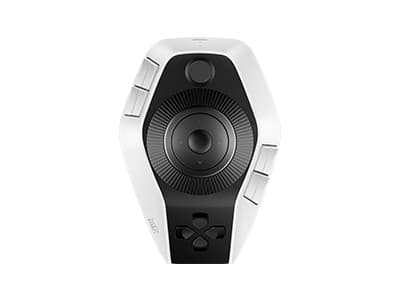
XP Pen makes drawing tablets. That is what I associate them with and what most people think of when the name comes up. The Pilot Pro is something different entirely. It is a shortcut controller, a left-handed joystick device designed to sit beside your drawing tablet or mouse and give your non-dominant hand something useful to do while your right hand draws. I was not expecting them to go this far in this direction and after spending time with it I have some clear thoughts on exactly who this is built for.
The first thing to understand is that this is a left-handed device by design. Your right hand uses the mouse or stylus. Your left hand rests on the Pilot Pro and accesses the shortcut buttons, dials, and joystick. I tried using it right-handed before reading the instructions and my hand just did not sit naturally on the controls. The ergonomic layout assumes a specific hand orientation and it genuinely works well when you respect that. If your left hand is your drawing hand, this is not going to be the right fit for your workflow.
The physical build is substantial. It has real weight to it, rubber grips along the bottom that prevent it sliding when you nudge it accidentally, and buttons along the sides that flare out slightly at the edges so your fingers can feel where one button ends and the next begins without looking down. That tactile distinction matters when your eyes are on the screen and you need to hit shortcuts by feel. The device comes with a soft pouch for travel, a USB cable for wired connection and charging, and a wireless dongle for Bluetooth use. Battery life is rated at fifteen days on a single charge and in my experience that claim is believable. Using it wirelessly the battery simply did not drain noticeably across my testing sessions.
There are three dials, one at the front, one around the joystick base, and a third at the top of the joystick itself that is easy to miss. The dials have haptic feedback built in, which is something I have not seen on a drawing remote before. Out of the box they feel smooth and loose, almost like they are not clicking into anything. Once the software is running and the haptics activate, the sensation completely changes. You feel each increment as you turn. Three haptic intensity levels are available in the settings, a firm click, a subtle bump, and off entirely. The difference between the unpowered feel and the haptic-enabled feel is significant enough that I would not judge the dials until the device is fully set up.
Everything on this controller starts as a blank slate. No default shortcuts are pre-loaded, which was a bigger adjustment than I expected coming from other shortcut remotes that at least give you a starting point. I spent a solid afternoon building my setup from scratch, mapping dials to zoom and timeline scrubbing, buttons to undo, brush size, and tool switching. The process is time-consuming but the software lets you export and import preset files, which means you only have to do it once and can carry that configuration to another machine or share it with other people. XP Pen provided presets for Premiere Pro and DaVinci Resolve, and the plan is to open a community portal where users can share configurations for any application they use.
I found the Pilot Pro more useful for video editing than drawing, which surprised me given the context. For drawing my workflow is fairly simple. Undo, brush size, eraser. A few buttons handle that and I do not need much more. For video editing the dial mapped to timeline zoom was immediately satisfying. Precise frame-by-frame movement using a dial feels more controlled than nudging a mouse, and zooming in and out of a long timeline with a smooth turn rather than keyboard shortcuts changes how the work flows. It made me wonder why I had not been using something like this for editing for years.
The joystick in the centre is the most prominent part of the design and honestly the hardest to use well. You can map shortcuts to each of the four cardinal directions and in advanced mode to eight diagonal positions as well. In practice I never found a natural way to incorporate those directional inputs into my workflow. The movements feel big and deliberate compared to just tapping a nearby button. It would be a natural fit for navigating 3D space in software like Blender but the implementation here works like keyboard shortcuts rather than smooth analogue input, so you get chunky incremental movements instead of the fluid navigation a dedicated 3D controller provides.
One software behaviour that bothered me during setup was that the settings app would visually update and draw attention to itself even when it was not the active window. Working in DaVinci with the settings panel on my second screen, every time I used the controller the settings panel would react in my peripheral vision. It made the initial configuration process slower and more distracting than it needed to be. Collapsing the settings window and bringing it up only when changing something was the workaround but it should not require a workaround.
The Pilot Pro is a well-built device with genuine standout features in the haptic dials and the ergonomic layout. Whether it is worth the price depends entirely on how much you need it. For a simple drawing workflow it is more than necessary. For video editing or complex multi-application creative work where shortcuts matter constantly, it earns its place on the desk.