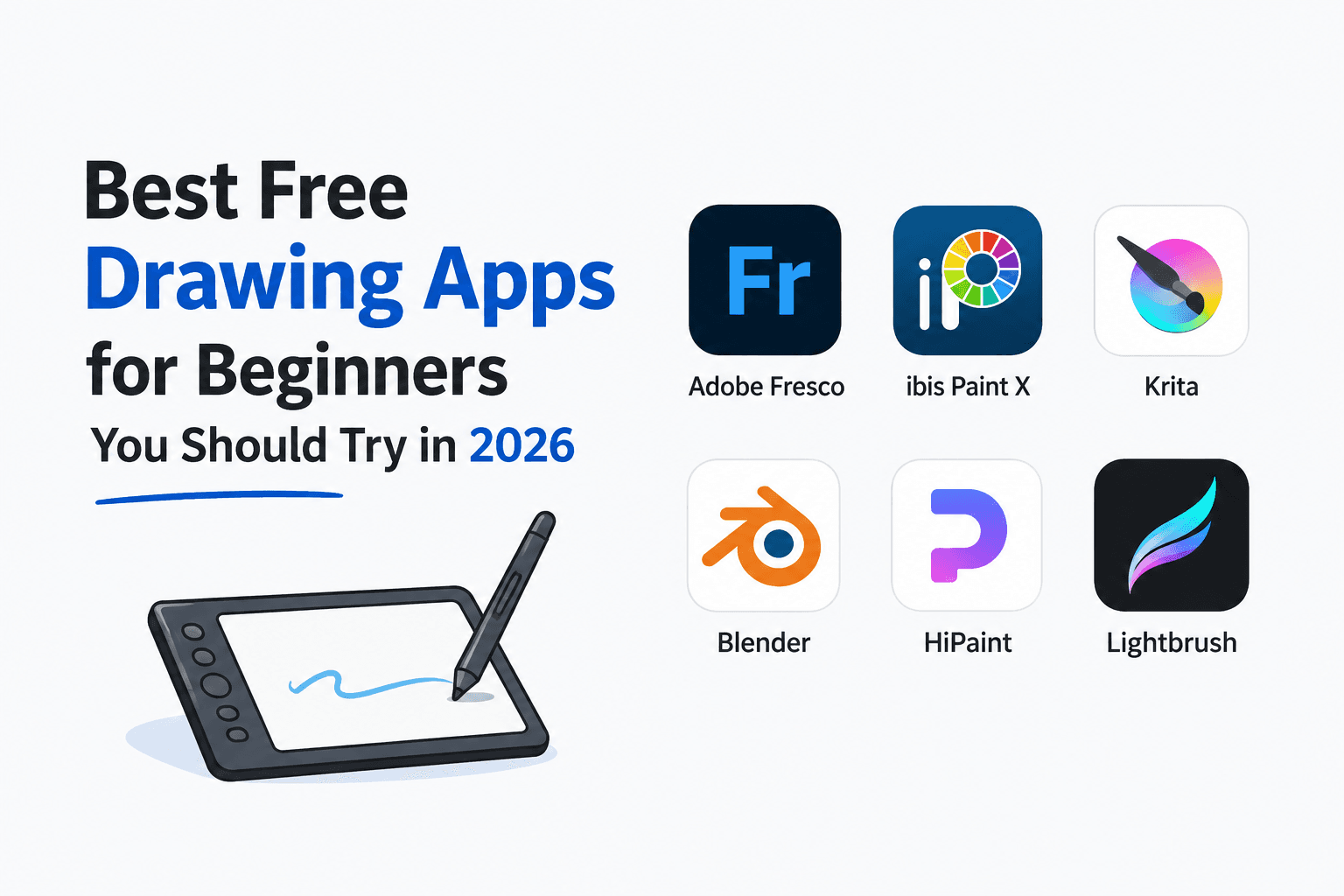
Finding a free drawing app that does not feel like a punishment is harder than it sounds. Most either lock the good brushes behind a paywall, crash on anything older than last year's flagship, or bury every useful tool under five menus. I have spent time across several of these apps and want to share what I actually think about each one so you do not waste hours figuring it out yourself.
1. Adobe Fresco
Fresco is the one that surprised me most this year. Adobe made the full version free, which was not the case before when it required a paid Creative Suite subscription. All you need now is a free Adobe account and you are in.
The app is built specifically for touchscreens, and that shows immediately. Opening it for the first time does not feel like being dropped into a cockpit. You tap a brush, you draw. The learning curve is genuinely gentle for a beginner, which is not something I say lightly about Adobe software.
The brush selection is where Fresco separates itself from everything else on this list. Because it is built around Photoshop brushes, you have access to decades worth of community-made brush sets, from free options to paid packs that replicate pastels, watercolours, and oil paint convincingly. The live brushes are a standout feature. Watercolour brushes bleed into each other the way real watercolour does on wet paper. You can actually lay down a water layer first before painting, which changes how pigment spreads across the canvas. It is a clever idea and I have not seen another free app execute it this well.
Vector brushes are also included, which feel like regular brush strokes when you lay them down but behave like vectors underneath. Zoom in as far as you want and the lines stay crisp. For logo work or character design where clean lines matter at any scale, this is useful.
The only real concern I have with Fresco is longevity. Adobe has a history of changing pricing structures, and a free app today is not guaranteed to be free in three years. If you build a workflow around it and they move it behind a subscription, you are in an uncomfortable position. Keep that in mind. As long as it stays free, it is exceptional.
Platform availability is limited to Windows and iPad. There is no Mac version and no Android version, which is a strange gap for a major software company in 2026.
2. ibis Paint X
ibis Paint X is the app I recommend most often to people who want to draw on their phone or Android tablet without spending anything. It runs on both Android and iOS, it is free, and the business model is one I can actually respect.
The app is ad-supported. Watch one ad per day and the entire brush library unlocks for the rest of that day. You are not watching an ad per brush or per feature. One ad, full access, done. If you want to remove ads permanently, you pay a small one-time fee. That transparency about how the app sustains itself is something I genuinely appreciate compared to apps that quietly limit features until you hit a paywall mid-project.
The inking brushes are the strongest part of ibis Paint X. For line art, comic-style illustration, and character sketching, the variety and quality of inking tools here beats most paid apps I have tried. Brush stabilisation smooths out hand wobble during strokes, which is a feature beginners benefit from immediately. Two-finger tap to undo is fast and reliable. The layer palette supports blend modes and opacity control without requiring any technical knowledge to use.
The interface is not the prettiest and does not feel as polished as Fresco, but everything you need is accessible without digging through nested menus. For a beginner who wants to start drawing today rather than spend an afternoon learning an interface, ibis Paint X gets you there fastest.
Your art stays on your device. Nothing goes to a cloud without your permission, and there is no account required to use the app. For anyone concerned about privacy or data ownership, that matters.
3. Krita
Krita is the option I point people toward when they want the most features possible without spending a single rupee, ever. It is open source, has always been free, and will always be free. You can donate to support development if you end up loving it, but there is no obligation and no subscription risk.
The feature set is the most extensive on this list. Krita includes a full brush engine with hundreds of included brushes across multiple categories, a complete layer system with every blend mode you would find in professional software, selection tools, mask support, animation tools, vector layers, and colour management. If a feature exists in digital art software, Krita probably has it.
It runs on Windows, Mac, Linux, and Android. The Android version is the full desktop application, not a stripped-down mobile port. On a large Android tablet the experience is genuinely good. On smaller screens the interface gets cramped because it was designed with a desktop canvas in mind, but on a 10-inch or larger tablet it works well enough to do real work.
The honest drawback is the learning curve. Krita is not designed to be picked up in five minutes. The interface reflects its desktop origin, with toolbars, dropdown menus, and panels that assume you already know what you are looking for. If you are drawing on a touchscreen without a keyboard, some functions are harder to reach because the app relies on keyboard shortcuts for efficient use on desktop. Once the workflow clicks it becomes second nature, but the first few hours can feel overwhelming if you are completely new to digital art.
I would not start a complete beginner on Krita on day one. I would start them on ibis Paint X or Fresco, let them get comfortable with layers and brushes, and then introduce Krita when they are ready for more control. As a long-term free tool with no strings attached, it is unmatched.
4. Blender
Blender is not a drawing app in the traditional sense. It is primarily a 3D modelling and rendering application, and recommending it for complete beginners comes with serious caveats. The interface when you first open it is a 3D cube surrounded by panels on every side, and clicking the wrong area opens an entirely different workspace with its own set of menus. It is genuinely intimidating and I will not pretend otherwise.
That said, Blender does have 2D drawing tools. The Grease Pencil system inside Blender allows for 2D illustration and animation within a 3D space, which opens creative possibilities that no other app on this list can match. If you want to animate a 2D character moving through a 3D environment, Blender is where that happens for free.
It is open source, permanently free, and available on Windows and Mac. No Android or iPad support exists, so this is desktop only.
I include it here not as a starter app but as a long-term destination. If you get comfortable with digital art basics and find yourself wanting to push into 3D or 2D animation, Blender is waiting and it costs nothing to explore. The learning investment is high but the ceiling is essentially unlimited.
5. HiPaint
HiPaint sits in an interesting position on this list. It runs on both Android and iOS, which makes it one of the few genuinely cross-platform mobile drawing apps available for free. The interface will feel immediately familiar to anyone who has used Procreate, which is intentional. HiPaint is structured similarly enough that switching between the two does not require relearning where everything lives.
The app is ad-supported when you open it, but unlike ibis Paint X the higher-end features cannot be unlocked by watching ads. Some tools require a paid upgrade. For basic drawing and illustration work the free tier covers enough ground to be useful, but power users will eventually hit the ceiling.
For Android users specifically, HiPaint fills a gap that Procreate leaves open since Procreate remains iPad exclusive. If you are an Android tablet user who wants a Procreate-style experience, HiPaint is the closest free option available right now.
6. LightBrush
LightBrush is the wildcard on this list and it earns its place through one specific advantage: it runs entirely inside a web browser. No download, no app store, no installation. You go to the website and start drawing immediately on any device with a browser and a stylus or touchscreen.
iPad, Android tablet, Chromebook, Windows, Mac, Linux, it works on all of them. For Chromebook users in particular this matters because native drawing apps for ChromeOS are genuinely hard to find. LightBrush solves that problem without requiring any workarounds.
The trade-off is that it is not as responsive or feature-rich as any native app on this list. Line quality is decent but not exceptional. Pressure sensitivity works but feels slightly behind what a native app delivers. If you have access to any native app listed above, use that instead. But if you are on a shared device, a school computer, or any situation where installing software is not possible, LightBrush means you can still draw.
Apps That Did Not Make the Cut
MediBang Paint is worth a mention. It is free, available on Windows, Android, and iPad, and built on a solid foundation for comic and manga-style illustration. The free version is capable, but competing apps have caught up and in some cases moved ahead. The paid Pro version is well-regarded but that puts it outside the free category.
GIMP comes up in conversations about free creative software regularly, but it is an image editing application rather than a drawing app at its core. Using it for digital illustration is possible but not what it was designed for, and the interface reflects that disconnect.
Sketchbook has been free and paid at different points and has changed ownership more than once. The brush sensitivity is high enough that slight hand movement registers as intentional strokes, which some artists love and others find frustrating. Worth trying if the apps above do not suit your style, but the uncertain history around pricing and ownership makes it hard to recommend confidently as a long-term option.
Which One Should You Start With
If you are on iPad, start with Adobe Fresco. If you are on Android, start with ibis Paint X. If you want the most features and do not mind a steeper start, download Krita. If you cannot install anything on your device, open LightBrush in your browser. All of them are free and all of them are capable of real creative work. The best one is whichever one you actually open and draw with today.